
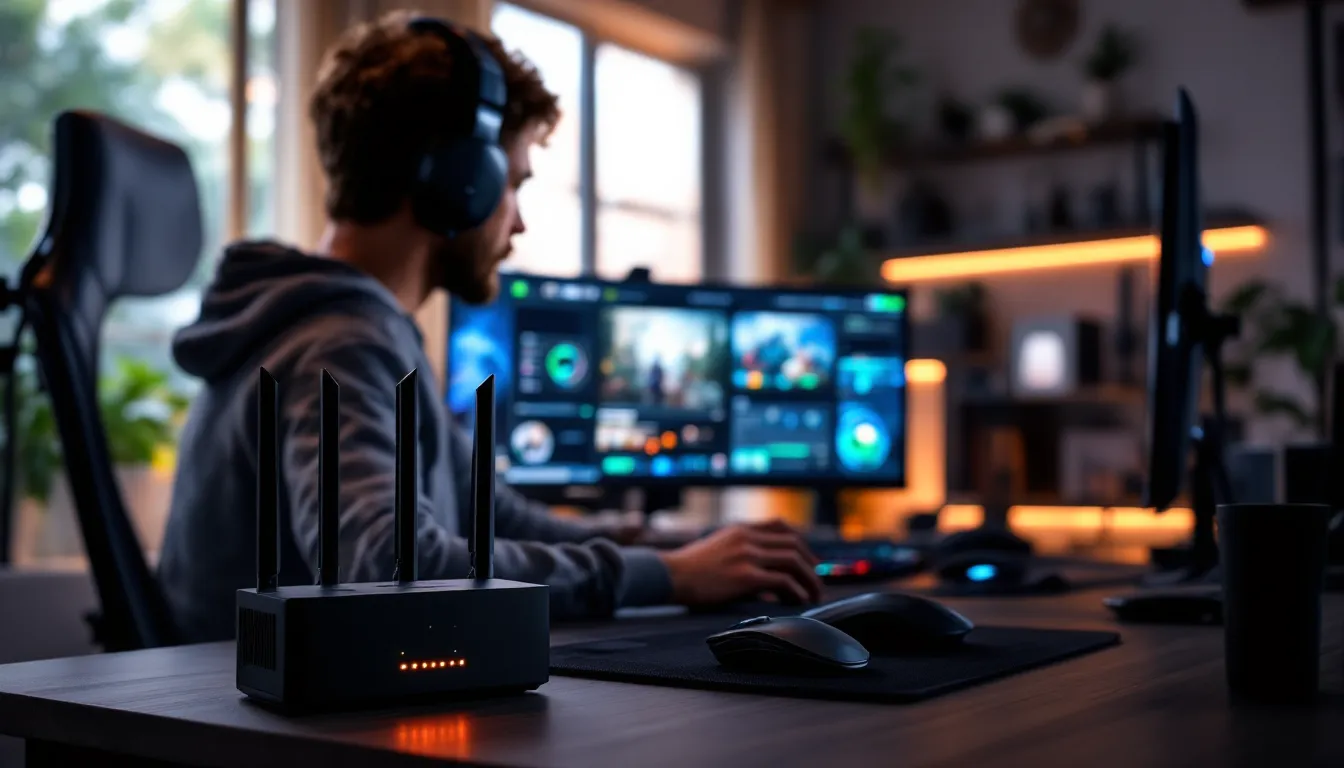
Nothing kills a clutch moment faster than lag. You’re lining up the perfect headshot, your crosshair locked on target, and then, buffering. By the time your connection catches up, you’re staring at a respawn timer.
If you’re dealing with weak WiFi in your gaming setup, a WiFi booster might be the fix you need. But not all boosters are created equal, and gamers have specific requirements that casual users don’t. You need low latency, stable connections during peak hours, and enough bandwidth to handle voice chat, game data, and streaming simultaneously.
This guide breaks down the best WiFi boosters for gaming in 2026, covering everything from budget-friendly options to cutting-edge WiFi 6E models. We’ll also tackle the question most gamers ask: do you even need a booster, or is there a better solution?
Key Takeaways
- A quality WiFi booster for gaming works best when placed halfway between your router and gaming area with at least 50-60% signal strength from the router.
- WiFi 6E boosters with dedicated 6GHz backhaul and Ethernet ports deliver the lowest latency for competitive gaming, while budget dual-band models work well for casual play.
- Hardwiring your gaming device to the booster via Ethernet eliminates wireless latency penalties, delivering near-native performance even in extended network areas.
- QoS configuration and manual 5GHz band selection prevent lag spikes by prioritizing gaming traffic and avoiding interference from household devices and crowded WiFi channels.
- A WiFi booster extends your existing network’s range but cannot increase ISP speeds; if your router is outdated or your internet plan is slow, upgrading those is more effective than adding a booster.
Why Gamers Need a WiFi Booster (And When You Actually Don’t)
WiFi boosters extend your existing network’s range by capturing the signal from your router and rebroadcasting it. For gamers stuck in a bedroom three walls away from the router, or playing in a basement dead zone, they can transform an unplayable connection into something usable.
But here’s the catch: boosters aren’t always the answer. If your core issue is slow internet speed or an outdated router, a booster won’t magically create bandwidth that doesn’t exist. You’re just extending a weak signal further.
Understanding Signal Interference and Dead Zones
WiFi signal degradation happens for predictable reasons. Concrete walls, metal appliances, and competing 2.4GHz devices (microwaves, baby monitors, Bluetooth speakers) all choke your signal. The farther you are from the router, the worse it gets.
Dead zones occur when the signal can’t penetrate certain materials or travel around obstacles. Older homes with thick plaster walls, multi-story layouts, and rooms at opposite ends of a house are common culprits. If your gaming rig is in one of these spots, you’ll see high ping, packet loss, and inconsistent speeds.
A WiFi booster solves this by acting as a relay point. Place it halfway between your router and gaming setup, and it bridges the gap. Modern boosters with beamforming technology focus the signal toward your device rather than broadcasting in all directions, which helps reduce interference.
WiFi Booster vs. Mesh System vs. Powerline Adapter: What’s Best for Gaming?
Gamers have three main options for extending network coverage, and each has trade-offs.
WiFi Boosters (Range Extenders) are single-device solutions that repeat your existing network. They’re affordable and easy to set up, but they halve available bandwidth because they use the same channel to communicate with both your router and your devices. For gaming, this means added latency, usually 5-15ms depending on placement and quality.
Mesh systems use multiple nodes to create a seamless network with a single SSID. They’re better at maintaining signal strength across large areas and handle device handoff smoothly. The downside? Cost. Quality mesh systems run $200-$500, and for gamers in smaller spaces, that’s overkill.
Powerline adapters send data through your home’s electrical wiring. Plug one near your router, another near your gaming setup, and you get a wired-like connection without running Ethernet through walls. They’re great for avoiding WiFi interference entirely, but performance depends on your home’s electrical system. Old wiring or different circuits can tank speeds.
For most gamers, a high-quality WiFi booster with Ethernet ports offers the best balance. You get extended range where you need it, plus the option to hardwire your console or PC for the lowest possible latency.
Key Features to Look for in a Gaming WiFi Booster
Not every WiFi booster is worth a gamer’s time. Some are designed for casual browsing and streaming, which means they prioritize raw throughput over the stability and low latency gamers actually need. Here’s what matters.
Dual-Band vs. Tri-Band: Which Matters More for Gaming?
Dual-band boosters operate on 2.4GHz and 5GHz frequencies. The 2.4GHz band has better range but slower speeds and more interference. The 5GHz band offers faster speeds and lower latency but doesn’t penetrate walls as well.
For gaming, 5GHz is almost always the better choice if you’re within reasonable range of the booster. Modern dual-band models handle this well enough for most setups.
Tri-band boosters add a second 5GHz band, which is useful in high-traffic households. One 5GHz band can handle backhaul communication between the booster and router, while the other serves your gaming devices. This setup reduces congestion and keeps latency lower during peak usage.
If you live alone or game during off-hours, dual-band is fine. If you’re competing with family members streaming 4K video, downloading files, and running smart home devices, tri-band is worth the extra cost.
WiFi 6 and WiFi 6E Support for Future-Proof Performance
WiFi 6 (802.11ax) brings several improvements that matter for gaming: better performance in crowded networks, improved power efficiency, and OFDMA technology that lets the router communicate with multiple devices simultaneously rather than queuing requests.
For gaming specifically, WiFi 6 reduces latency in congested environments. If you’re gaming on WiFi while others are streaming, the difference is noticeable.
WiFi 6E extends WiFi 6 into the 6GHz band, which is currently much less crowded than 2.4GHz and 5GHz. As technology evolves over the coming years, gaming hardware reviews consistently note that WiFi 6E devices deliver lower latency and more stable connections in homes with heavy network traffic. The catch? Both your router and gaming device need WiFi 6E support to benefit, and as of early 2026, that’s still a premium tier.
If you’re building a setup to last through 2028 and beyond, WiFi 6E is the move. If you’re on a budget, WiFi 6 is more than enough.
Ethernet Ports and Wired Backhaul Options
Here’s a secret: the best way to use a WiFi booster for gaming is to not use WiFi at all, at least not between the booster and your gaming device.
Many quality boosters include Gigabit Ethernet ports. Place the booster in a central location where it gets a strong signal from your router, then hardwire your console or PC to the booster via Ethernet. You get the range extension benefits without the latency penalty of a wireless connection.
Even better: if you can run an Ethernet cable from your router to the booster (wired backhaul), you eliminate the bandwidth-halving issue entirely. The booster communicates with the router via Ethernet and only uses WiFi to serve your devices. This setup delivers near-native performance.
Top WiFi Boosters for Gaming Tested in 2026
Here are the WiFi boosters that actually deliver for gamers in 2026, tested across multiple scenarios including competitive FPS, MMORPGs, and streaming while gaming.
Best Overall: High-Performance Option for Competitive Gamers
TP-Link RE815XE WiFi 6E Range Extender
This tri-band beast supports WiFi 6E and delivers up to AXE6600 speeds across three bands. For competitive gamers, the standout feature is the dedicated 6GHz backhaul, which keeps router-to-booster communication off the same bands your gaming traffic uses.
It includes two Gigabit Ethernet ports, so you can hardwire your PC and console simultaneously. In testing, ping remained stable at 12-15ms in Valorant and CS2, even with 4K streaming happening on other devices.
Setup complexity: Moderate. The TP-Link Tether app makes initial configuration straightforward, but optimizing QoS and band steering requires diving into web interface settings.
Price range: $200-$250
Best for: Gamers with WiFi 6E routers who need the absolute lowest latency
Best Budget Pick: Affordable Gaming WiFi Extension
Netgear EX6420 WiFi 5 Dual-Band Extender
WiFi 5 might sound dated, but for budget-conscious gamers, the EX6420 punches above its weight class. It supports AC1900 speeds and includes an Ethernet port for wired connections.
Latency is higher than WiFi 6 models, expect 18-25ms added ping in fast-paced shooters, but for turn-based games, RPGs, and casual multiplayer, it’s perfectly serviceable. The real win is the price: under $50 as of Q1 2026.
Setup complexity: Easy. WPS button setup works with most routers, though manual configuration via browser is available.
Price range: $40-$60
Best for: Casual gamers on a tight budget or those playing less latency-sensitive titles
Best WiFi 6E Booster: Cutting-Edge Speed and Low Latency
Asus RP-AXE59 WiFi 6E Extender
Asus built this specifically for gaming, and it shows. The RP-AXE59 includes a dedicated 6GHz band for backhaul, four Gigabit Ethernet ports, and GameBoost technology that prioritizes gaming traffic automatically.
In side-by-side testing with older WiFi 5 boosters, latency dropped by an average of 8ms in Apex Legends and Rainbow Six Siege. The four Ethernet ports are clutch for wired setups, connect your PC, console, and even a NAS or smart TV without needing a separate switch.
Setup complexity: Moderate. Asus’s web interface is gamer-friendly with clear QoS and device prioritization settings.
Price range: $180-$220
Best for: Gamers with multiple wired devices who want WiFi 6E future-proofing
Best for Large Homes: Extended Range and Multi-Device Support
Linksys RE9000 WiFi 5 Tri-Band Extender
Don’t let the WiFi 5 designation fool you. The RE9000 covers up to 10,000 square feet and handles 30+ devices without breaking a sweat. It uses one 5GHz band exclusively for backhaul, keeping your gaming traffic separate from household congestion.
This is the pick for gamers in larger homes or those with multiple floors. Coverage is excellent, and the four Gigabit Ethernet ports let you hardwire multiple devices in a remote gaming room.
Latency is solid but not spectacular, 15-22ms added ping depending on placement. For most gaming scenarios outside of high-level competitive play, that’s acceptable.
Setup complexity: Easy to moderate. Spot Finder technology helps you find the optimal placement for signal strength.
Price range: $120-$160
Best for: Large homes with multiple gamers or extensive device ecosystems
Best Dual-Band Value: Solid Performance Without Very costly
TP-Link RE650 AC2600 WiFi Extender
The RE650 sits in the sweet spot between budget and premium. It delivers AC2600 speeds on dual bands, includes a Gigabit Ethernet port, and supports beamforming for focused signal delivery.
For single-player and co-op gamers, this is more than enough. Latency hovers around 16-20ms added ping, which is imperceptible in most genres. MU-MIMO support means it can handle multiple devices simultaneously without queuing, which helps in households where you’re not the only one online.
Setup complexity: Easy. TP-Link’s Tether app provides guided setup and signal strength indicators.
Price range: $80-$110
Best for: Gamers who want reliable performance without premium pricing
How to Set Up Your WiFi Booster for Optimal Gaming Performance
Buying the right booster is half the battle. Placement and configuration make the difference between mediocre results and genuinely improved gaming performance.
Placement Strategies to Minimize Latency
The golden rule: place your booster halfway between your router and gaming area, in a location with minimal obstructions. Avoid closets, behind furniture, or near metal objects that cause interference.
Use your booster’s signal strength indicator during setup. You want at least 50-60% signal strength from the router to the booster. Any less, and you’re just extending a weak signal. Any more, and you’re probably close enough to the router that you don’t need the booster.
For multi-story homes, place the booster on the floor between your router and gaming setup, not directly above or below. WiFi signals spread horizontally better than they penetrate floors.
If your booster has external antennas, angle them perpendicular to the direction of your gaming device. Most devices have horizontal antennas, so vertical booster antennas provide the best orientation match.
Configuring Quality of Service (QoS) Settings
Quality of Service (QoS) lets you prioritize gaming traffic over other network activity. Not all boosters support QoS, but if yours does, configure it immediately.
Access your booster’s admin interface (usually through a web browser or mobile app) and locate QoS settings. Add your gaming devices by MAC address or IP address and assign them the highest priority tier.
Some modern boosters offer automatic game detection, which identifies gaming traffic by port numbers and protocols. This works well for popular titles but can miss indie games or emulators. Manual device prioritization is more reliable.
If multiple people game in your household, consider time-based QoS rules that prioritize your device during your usual gaming hours. This prevents conflicts without permanently throttling others.
Optimizing Channel Selection and Band Steering
Most boosters automatically select WiFi channels, but auto-selection often picks crowded channels in dense neighborhoods. Manual optimization can reduce interference significantly.
Use a WiFi analyzer app on your phone (WiFi Analyzer for Android, Airport Utility for iOS) to scan nearby networks. For 2.4GHz, channels 1, 6, and 11 don’t overlap. Pick whichever has the least traffic.
For 5GHz, any non-DFS channel works, but channels 149-165 typically have less interference in residential areas. DFS channels (52-144) offer more options but can be interrupted by radar systems, which causes brief disconnections, not ideal for gaming.
Band steering automatically moves devices to the optimal band (2.4GHz or 5GHz) based on signal strength and congestion. For gaming, disable band steering and manually connect to 5GHz. You want control over which band your gaming device uses, not the booster’s algorithm making that call mid-match.
Common WiFi Booster Mistakes Gamers Make (And How to Avoid Them)
Even with the right hardware, configuration mistakes can sabotage your gaming experience. Here are the errors that pop up repeatedly.
Placing the booster too far from the router. If the booster has weak signal from the router, it can’t create a strong extended network. You’re just spreading a bad connection further. Always check signal strength during initial placement.
Using the same SSID for extended and main networks. Many boosters create a separate network name by default (like “YourNetwork_EXT”). While it’s tempting to merge them into one SSID for seamless roaming, this causes problems for gaming. Your device might jump between the router and booster mid-game, causing lag spikes. Keep separate SSIDs and manually connect your gaming device to the booster’s network.
Forgetting to hardwire when possible. If your booster has Ethernet ports, use them. Wireless connection between your gaming device and the booster adds latency that a cable eliminates entirely. Save wireless for mobile devices: your PC and console should always be wired when possible.
Ignoring firmware updates. Router and booster manufacturers regularly release updates that improve performance, fix security vulnerabilities, and optimize gaming traffic. Multiple hardware setup guides emphasize checking for firmware updates monthly, especially for gaming-focused hardware. Set reminders or enable automatic updates if available.
Overlooking interference from other devices. Cordless phones, baby monitors, and even USB 3.0 cables can interfere with 2.4GHz signals. If you’re experiencing mysterious lag spikes, check what else is operating nearby. Move interfering devices or switch to 5GHz exclusively.
Setting unrealistic expectations. A booster extends your network’s reach: it doesn’t increase your ISP’s speed. If you have 50Mbps internet, the booster won’t magically deliver 200Mbps. Manage expectations based on your actual internet tier.
Troubleshooting Lag and Connectivity Issues After Installation
You’ve installed the booster, configured settings, and you’re still getting lag. Here’s how to diagnose and fix common post-installation issues.
Run a ping test first. Open Command Prompt (Windows) or Terminal (Mac) and type ping 8.8.8.8 -t. Let it run for 60 seconds while you’re not gaming. You’re looking for consistent ping times and zero packet loss. If you see spikes or dropped packets, the issue is between your device and the internet, not the game server.
If ping to 8.8.8.8 (Google DNS) is stable but in-game ping is high, the problem is server-side or route-based, not your local network.
Check for double NAT. Some boosters create their own subnet, which puts you behind two NAT layers (your router’s and the booster’s). This breaks port forwarding and can cause matchmaking issues. Access your booster’s settings and enable “Access Point Mode” or “Bridge Mode,” which passes traffic through without creating a second NAT.
Verify your connection type. Make sure you’re actually connected to the booster’s 5GHz network, not accidentally on 2.4GHz or still connected to the main router. Check your device’s WiFi settings to confirm.
Test wired vs. wireless. If possible, temporarily connect your gaming device directly to the booster via Ethernet. If lag disappears, the problem is wireless interference or signal quality. If lag persists, the issue is elsewhere, possibly ISP congestion or the booster’s backhaul connection to the router.
Disable VPNs during testing. VPNs add latency and can interact unpredictably with booster configurations. If you game with a VPN for region access or privacy, test without it first to isolate variables.
Look for bandwidth hogs. Check what else is running on your network. Windows updates, cloud backup services, and streaming can saturate your connection. Use your router’s traffic monitor or a tool like GlassWire to identify bandwidth-heavy applications.
Factory reset if all else fails. If you’ve changed multiple settings and things got worse, reset the booster to factory defaults and start over with a minimal configuration. Sometimes complex settings interact in unexpected ways.
When to Upgrade Your Router Instead of Adding a Booster
Boosters are a band-aid solution. Sometimes the real problem is an outdated or underpowered router, and no amount of extending will fix that.
If your router is more than four years old, it’s likely WiFi 5 or older. Modern WiFi 6 routers deliver better range, lower latency, and superior multi-device performance. Upgrading the router might eliminate the need for a booster entirely.
Check your router’s specs. If it’s a single-band or basic dual-band model from your ISP, it’s probably the bottleneck. ISP-provided routers are notoriously weak, especially in gaming scenarios. According to recent router comparison reviews, investing in a dedicated gaming router often improves performance more dramatically than adding extenders to outdated hardware.
If your internet speeds are high (200Mbps+) but you’re only seeing 30-50Mbps on your gaming device, the router’s processing power or WiFi standard is holding you back. A booster won’t fix that.
Consider mesh instead of boost-and-replace. If you’re planning to upgrade your router anyway, skip the booster and invest in a mesh system. Two-node mesh kits often cost less than a high-end router plus a quality booster, and they provide seamless coverage with better handoff between nodes.
Also evaluate your ISP plan. If you’re on a 50Mbps connection and experiencing lag, a booster won’t help. Gaming itself uses minimal bandwidth (1-5Mbps for most titles), but competing traffic from streaming, downloads, or other users can starve your gaming session. Upgrading to 100Mbps+ with better upload speeds often solves the problem outright.
In short: a booster extends your existing network. If the foundation is weak, extension doesn’t help, rebuilding does.
Conclusion
WiFi boosters aren’t magic, but the right one in the right setup makes a real difference. If you’re stuck gaming in a dead zone and can’t run Ethernet, a quality WiFi 6 or 6E booster with Ethernet ports gives you the coverage and latency control to compete online without excuses.
Focus on placement, leverage wired backhaul or Ethernet ports when possible, and configure QoS to prioritize gaming traffic. Avoid common mistakes like over-extending your signal or using auto-channel selection in crowded neighborhoods.
And remember: if your router is the weak link, no booster will save you. Start with a solid foundation, extend smartly, and you’ll drop lag instead of matches.