
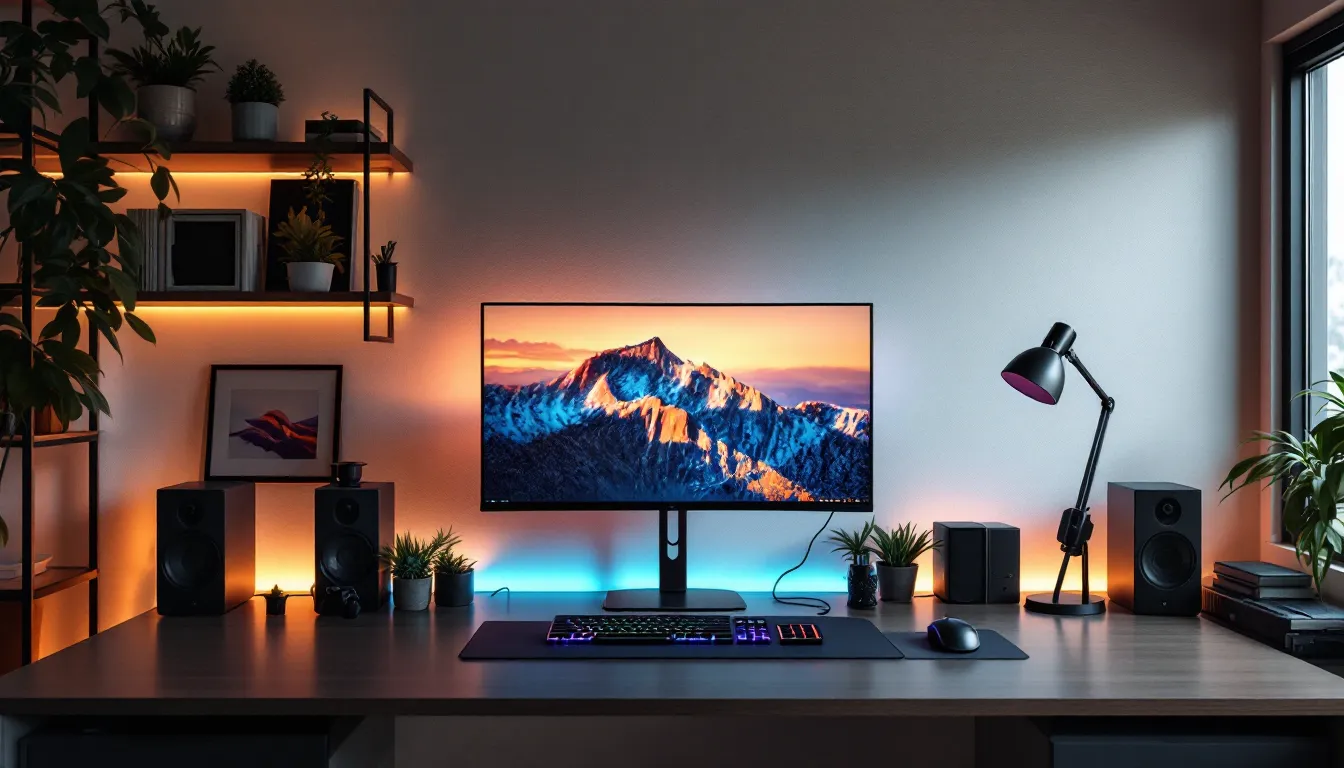
Choosing the right gaming monitor can feel like navigating a minefield of specs, marketing buzzwords, and conflicting opinions. But if you’ve landed on the 27-inch size class, you’re already on the right track. A 27 inch gaming monitor strikes a rare balance: large enough to pull you into the action, compact enough to fit most desks, and priced competitively across nearly every performance tier.
In 2026, the 27 in gaming monitor market is more competitive than ever. You’ll find panels pushing 360Hz refresh rates for esports athletes, 4K OLED displays for single-player immersion, and budget-friendly 1440p options that don’t sacrifice the essentials. Whether you’re grinding ranked matches in Valorant, exploring open worlds in Elden Ring, or streaming on a dual-monitor setup, the 27-inch form factor delivers without compromise.
This guide breaks down everything you need to know, from panel technology and refresh rates to GPU pairing and calibration. No filler, no fluff. Just the information you need to make the right call for your gaming style and budget.
Key Takeaways
- A 27 inch gaming monitor balances screen real estate with desk compatibility, offering the optimal viewing distance of 24-36 inches for both competitive and immersive gaming without eye strain.
- 1440p resolution is the ideal sweet spot for 27-inch displays, delivering sharp visuals and future-proofing your setup while remaining achievable with mid-range GPUs like the RTX 4060 Ti.
- IPS panels dominate the 2026 market for 27-inch gaming monitors, offering vibrant colors and competitive response times, while VA panels suit atmospheric single-player games with deeper blacks and higher contrast.
- Match your 27 inch gaming monitor to your GPU: 1440p 144Hz requires an RTX 4060 Ti minimum, while 4K gaming demands flagship cards like the RTX 4080 to maintain playable frame rates.
- Avoid common pitfalls by checking third-party reviews for real response time performance, prioritizing adjustable ergonomics over RGB gimmicks, and measuring your desk before purchase to ensure proper fit and positioning.
- Optimal display calibration varies by genre—competitive games benefit from 250-300 nits brightness and medium overdrive, while immersive titles should use 200-250 nits with HDR enabled for true atmospheric impact.
Why 27 Inches Is the Sweet Spot for Gaming Monitors
The Perfect Balance Between Screen Real Estate and Desk Space
Most gaming desks range between 48 and 60 inches wide. A 27 gaming monitor occupies roughly 24 inches of horizontal space with its stand, leaving room for peripherals, speakers, or a second display. Compare that to 32-inch monitors, which can dominate smaller setups and force you to push your keyboard uncomfortably close to the edge.
The size also scales perfectly with modern resolutions. At 1440p, a 27-inch panel delivers a pixel density of around 109 PPI, sharp enough to eliminate visible pixelation without requiring UI scaling in games or Windows. Push up to 4K (163 PPI) and text becomes razor-sharp, though you’ll need serious GPU horsepower to maintain high frame rates.
Optimal Viewing Distance and Eye Comfort
The ideal viewing distance for a 27 in gaming monitor sits between 24 and 36 inches, exactly where most gamers naturally position themselves. At this range, your peripheral vision captures the entire screen without constant head movement, a critical advantage in competitive shooters where spotting movement at the edge of your display can mean the difference between a clutch round and a respawn timer.
Eye comfort matters more than most gamers realize, especially during marathon sessions. A 27-inch display at arm’s length reduces eye strain compared to sitting closer to smaller panels or farther from oversized screens. Your eyes track across a manageable horizontal span, and modern features like flicker-free backlights and low blue light modes (standard on most 2026 models) further minimize fatigue. For anyone pulling 4-hour grinding sessions or weekend gaming binges, this size just works.
Key Specifications to Consider When Choosing a 27 Inch Gaming Monitor
Resolution: 1080p vs 1440p vs 4K
1080p (1920×1080) on a 27-inch monitor is a tough sell in 2026. At 82 PPI, individual pixels become visible at typical viewing distances, and text clarity suffers. The only valid reason to choose 1080p at this size is if you’re running a lower-tier GPU (think GTX 1660 or RX 6500 XT) and want to maximize frame rates in competitive titles. Even then, you’re better off saving for a 1440p panel.
1440p (2560×1440) is the Goldilocks resolution for 27-inch gaming. It delivers noticeably sharper image quality than 1080p without the brutal GPU demands of 4K. Mid-range cards like the RTX 4060 Ti or RX 7700 XT can push 100+ fps in most AAA games at high settings, while competitive players easily hit 240+ fps in CS2 or Apex Legends. This resolution also future-proofs your setup as games become more demanding.
4K (3840×2160) at 27 inches is overkill for some, perfection for others. The pixel density is exceptional, ideal for content creation, RPGs, and single-player games where you want every environmental detail to pop. But you’ll need an RTX 4070 Ti or better to maintain 60+ fps in modern AAA titles at max settings. For competitive gaming, 4K makes less sense: most pros prioritize frame rates over resolution.
Refresh Rate and Response Time for Competitive Gaming
Refresh rate determines how many frames per second your monitor can display. In 2026, the standards are:
- 144Hz: The baseline for serious gaming. Smooth enough for most genres, affordable, and achievable with mid-range hardware.
- 240Hz: The competitive standard for esports. If you’re ranking up in tac shooters or MOBAs, this is where you want to be.
- 360Hz: Enthusiast territory. The difference between 240Hz and 360Hz is subtle, noticeable mainly to high-level players with fast reaction times.
- 480Hz: Niche. Only a handful of panels hit this mark, and you’ll need a beastly GPU plus competitive settings (low graphics, 1080p) to even approach those frame rates.
Response time (gray-to-gray or GtG) measures how quickly pixels change color. Aim for 1ms GtG or faster to eliminate motion blur and ghosting. Most modern gaming monitors achieve this spec, but budget models sometimes advertise 1ms with overdrive modes that introduce inverse ghosting. Independent testing from RTINGS often reveals the real-world performance behind manufacturer claims.
Panel Types: IPS, VA, and TN Explained
IPS (In-Plane Switching) panels dominate the 27-inch gaming space in 2026. They offer vibrant colors (typically 95%+ DCI-P3 coverage), wide viewing angles, and response times now competitive with TN panels thanks to Fast IPS and Nano IPS tech. The tradeoff? Slightly higher input lag (usually negligible) and lower contrast ratios compared to VA.
VA (Vertical Alignment) panels deliver deeper blacks and contrast ratios around 3000:1, double what IPS achieves. This makes them ideal for immersive single-player games and HDR content. But, VA suffers from slower pixel response times, which can cause smearing in fast motion. If you play methodical games like Baldur’s Gate 3 or Cyberpunk 2077, VA’s image quality wins. For twitchy shooters, stick with IPS.
TN (Twisted Nematic) panels are nearly extinct at the 27-inch size. They offered the fastest response times (sub-1ms) and lowest input lag, but the washed-out colors and terrible viewing angles made them unappealing outside hardcore competitive circles. Modern Fast IPS panels now match TN speed without the visual compromises.
Adaptive Sync Technologies: G-Sync vs FreeSync
Screen tearing happens when your GPU’s frame output doesn’t sync with your monitor’s refresh rate. Adaptive Sync eliminates this by dynamically matching the display’s refresh to your GPU’s output.
NVIDIA G-Sync comes in three tiers:
- G-Sync Compatible: FreeSync monitors certified by NVIDIA. Works with GTX 10-series and newer.
- G-Sync: Includes NVIDIA’s proprietary module for wider variable refresh ranges and guaranteed quality.
- G-Sync Ultimate: Adds HDR certification with strict brightness and contrast requirements.
AMD FreeSync is an open standard, meaning broader adoption and lower prices. FreeSync Premium adds low framerate compensation (LFC), which prevents stuttering when fps drops below the monitor’s minimum refresh rate. Most modern monitors support both G-Sync Compatible and FreeSync, so you’re covered regardless of GPU brand.
Bottom line: Don’t overpay for G-Sync Ultimate unless you’re also prioritizing HDR. G-Sync Compatible or FreeSync Premium delivers smooth gameplay at a fraction of the cost.
Best 27 Inch Gaming Monitors for Different Gaming Styles
Top Picks for Competitive FPS and Esports
For competitive gaming, prioritize refresh rate, response time, and input lag over everything else. In early 2026, the ASUS ROG Swift PG27AQN remains a top contender with its 360Hz Fast IPS panel, 0.5ms GtG response, and NVIDIA Reflex Latency Analyzer integration. If you’re grinding Valorant or CS2 ranked, this monitor’s motion clarity is hard to beat.
For AMD GPU users, the BenQ Zowie XL2746K offers a 240Hz panel tuned specifically for esports with features like Black eQualizer (brightens dark areas without overexposing lighter zones) and DyAc+ technology to reduce motion blur. It’s not flashy, no RGB, minimal bezels, but it does one thing exceptionally well.
Budget pick: The AOC 27G2 (1080p 144Hz IPS) can be found under $200 and delivers surprisingly good response times for casual competitive play. Just accept the resolution compromise.
Immersive Monitors for RPGs and Single-Player Adventures
Immersion demands visual fidelity. The LG 27GP950-B (4K 144Hz Nano IPS) nails this with 98% DCI-P3 coverage, DisplayHDR 600 certification, and HDMI 2.1 for console compatibility. Exploring Elden Ring or Starfield on this panel makes the extra pixels worth the GPU tax.
If OLED is in your budget, the ASUS ROG Swift OLED PG27AQDM (1440p 240Hz QD-OLED) is the current king. Infinite contrast, per-pixel lighting, and colors that pop off the screen. Just be mindful of burn-in risk if you leave static HUDs on for hours, though 2026 models include better pixel-shift and logo-dimming tech.
For VA fans, the Samsung Odyssey G7 (1440p 240Hz curved VA) combines high refresh with deep blacks and aggressive 1000R curvature that wraps your peripheral vision.
Budget-Friendly Options Under $300
The Dell S2722DGM (1440p 165Hz VA curved) regularly drops to $250-$280 during sales. It’s not cutting-edge, but the 1440p resolution and 165Hz refresh handle most games smoothly. VA panel means decent contrast, though response time sits around 4ms, which can cause slight ghosting in fast scenes.
Gigabyte M27Q (1440p 170Hz IPS) offers better motion handling with a KVM switch for multi-PC setups. Street price hovers around $280, and hardware benchmarks from Tom’s Hardware consistently rank it as a solid value pick.
MSI G2722C (1080p 165Hz VA curved) dips under $200 for gamers on tight budgets. You’re sacrificing resolution, but the curve adds immersion for single-player titles.
Premium Flagship Models for Enthusiasts
If budget isn’t a constraint, the ASUS ROG Swift OLED PG27AQDM (mentioned earlier) represents the pinnacle of 27-inch gaming in 2026. QD-OLED’s infinite contrast and 0.03ms response time make everything else feel sluggish.
The Acer Predator XB273K (4K 144Hz IPS with G-Sync Ultimate) caters to gamers who want flagship specs with excellent HDR performance (DisplayHDR 1000, peak brightness over 1000 nits). It’s bulky and expensive, but the experience justifies the premium.
For something truly niche, the ViewSonic Elite XG270QG (1440p 165Hz IPS with hardware calibration) targets gamers who also stream or create content. Factory-calibrated color accuracy and a built-in colorimeter make this a dual-purpose powerhouse.
Essential Features That Elevate Your Gaming Experience
HDR Support and Color Accuracy
HDR (High Dynamic Range) expands the range of brightness and color your monitor can display, making highlights brighter and shadows darker without losing detail. But not all HDR is equal. DisplayHDR 400 is the bare minimum, basically a checkbox feature with minimal real-world impact. DisplayHDR 600 starts to show meaningful improvement with local dimming zones, while DisplayHDR 1000 delivers true HDR with peak brightness exceeding 1000 nits.
For gaming, HDR shines in atmospheric titles like Metro Exodus or Resident Evil Village. Competitive gamers often disable HDR because it can introduce input lag or wash out visibility in certain lighting conditions.
Color accuracy matters more if you’re streaming, creating thumbnails, or editing clips. Look for panels covering 95%+ of DCI-P3 or 100%+ of sRGB. Factory calibration (Delta E < 2) means colors are accurate out of the box, important if you don’t own a colorimeter.
Ergonomic Design and Adjustability
A monitor with only tilt adjustment is a dealbreaker. At minimum, demand height, tilt, and swivel adjustments. Pivot (portrait mode) is nice for coding or browsing but less critical for gaming.
Proper ergonomics prevent neck strain during long sessions. Your eyes should naturally align with the top third of the screen when seated normally. VESA mount compatibility (100×100mm standard) gives you the option to use third-party arms for even more flexibility.
Cable management channels on the stand aren’t sexy, but they keep your desk clean and prevent cable snags during heated gaming moments.
Connectivity Options and Port Selection
In 2026, expect at least:
- HDMI 2.1: Essential for 4K 120Hz+ from PS5 or Xbox Series X. Older HDMI 2.0 maxes out at 4K 60Hz.
- DisplayPort 1.4: Standard for PC gaming. Supports 1440p 240Hz and 4K 144Hz with DSC (Display Stream Compression).
- USB Hub: Built-in USB 3.0 ports let you connect peripherals directly to the monitor, reducing cable runs to your PC.
- Audio Out: 3.5mm jack for headphones. Built-in speakers exist on some models but are universally mediocre, invest in real speakers or a headset.
Some premium models include USB-C with DisplayPort Alt Mode and power delivery, allowing single-cable connections to laptops. Handy for hybrid work/gaming setups.
Matching Your Monitor to Your Gaming Setup
GPU Requirements for Different Resolutions and Refresh Rates
Buying a 240Hz 1440p monitor with a GTX 1650 is like buying a Ferrari and filling it with regular gas. You need horsepower to feed those pixels.
1080p 144Hz: GTX 1660 Super, RX 6600, or better. Easy to drive in competitive titles, manageable in AAA games at medium-high settings.
1440p 144Hz: RTX 4060 Ti, RX 7700 XT, or better. The sweet spot for most gamers in 2026. You’ll hit 100+ fps in most AAA titles at high settings.
1440p 240Hz: RTX 4070, RX 7800 XT minimum. For competitive games, you’re golden. For AAA titles, expect 100-144 fps at high settings, which still looks buttery smooth.
4K 60Hz: RTX 4060 Ti, RX 7700 XT. Playable in most games at high settings. Not ideal for competitive gaming.
4K 144Hz: RTX 4080, RX 7900 XTX minimum. This is enthusiast territory. You’ll still need to dial back settings in the latest AAA games to maintain 100+ fps. Reviews from TechRadar frequently benchmark these pairings with real-world game tests.
Don’t forget about VRAM. 4K gaming at max textures can exceed 12GB in some titles. Check your GPU’s memory capacity before committing to a 4K monitor.
Console Gaming Considerations for PS5 and Xbox Series X
Both PS5 and Xbox Series X support 4K 120Hz output via HDMI 2.1. But, most games run at 1440p or dynamic 4K, with only select titles (like Call of Duty or Fortnite) offering true 4K 120fps modes. A 27-inch 1440p 144Hz monitor with HDMI 2.1 is actually the smarter choice for console gaming, you’ll benefit from the high refresh rate in supported games without paying the premium for 4K.
Note: Consoles don’t support variable refresh rate (VRR) as universally as PCs. Both systems support FreeSync, and Xbox also works with some G-Sync Compatible monitors, but compatibility can be finicky. Check your specific monitor’s console VRR support before assuming it’ll work.
For single-player console exclusives where you prioritize visuals over frame rate, a 4K 60Hz monitor with HDR makes sense. But if you’re playing competitive shooters or racing games, prioritize refresh rate over resolution.
Common Mistakes to Avoid When Buying a 27 Inch Gaming Monitor
Chasing specs without considering your GPU. A 4K 240Hz monitor means nothing if your RTX 4060 can only push 60fps in modern games. Match your monitor to your hardware, or plan to upgrade both.
Ignoring panel type. Buying a VA panel for competitive FPS is asking for ghosting frustration. Conversely, choosing IPS for a dark, atmospheric single-player game means accepting weaker blacks and bloom. Panel type matters, don’t gloss over it.
Assuming all “1ms response time” claims are equal. Manufacturers often list the best-case overdrive mode, which can introduce inverse ghosting. Independent reviews reveal the real-world performance. Always check third-party testing.
Overlooking ergonomics. You’ll spend hundreds of hours staring at this display. If it only tilts and you can’t adjust height, you’ll regret it during your first marathon session. Proper ergonomics aren’t negotiable.
Skipping warranty and dead pixel policies. Gaming monitors run hot and get abused. A solid warranty (3+ years) matters. Also check the manufacturer’s dead pixel policy, some require multiple dead pixels before replacement, which is unacceptable on a premium display.
Forgetting about desk size. Measure your desk before buying. A 27-inch monitor with a deep stand might not fit comfortably, forcing you to sit too close. Account for the stand’s footprint or budget for a VESA mount.
Going overkill on features you won’t use. RGB lighting, elaborate software suites, and built-in speakers add cost without improving gaming performance. If you’re on a budget, skip the fluff and invest in better panel tech or higher refresh rates.
Setting Up and Calibrating Your New Gaming Monitor
Optimal Display Settings for Different Game Genres
Out-of-box settings are rarely optimal. Most monitors ship in a “vivid” or “dynamic” mode with oversaturated colors and cranked brightness designed to look impressive on a store shelf. Switch to “Standard” or “sRGB” mode as a starting point.
Competitive FPS (CS2, Valorant, Apex Legends):
- Brightness: 250-300 nits (comfortable for indoor gaming without washing out details)
- Contrast: Manufacturer default (don’t touch unless you know what you’re doing)
- Overdrive: Medium or Fast setting (test for ghosting: if you see trailing, dial it back)
- Black Equalizer/Shadow Boost: Slightly raised to spot enemies in dark corners without destroying overall image quality
- Blue Light Filter: Off (can introduce input lag or color shift)
- Motion Blur Reduction: On if available and compatible with your refresh rate (note: usually disables VRR)
Immersive Single-Player (RPGs, Horror, Story-Driven):
- Brightness: 200-250 nits (lower for darker games to preserve atmosphere)
- Contrast: Default or slightly boosted for VA panels
- Overdrive: Medium (prioritize clean image over absolute fastest response)
- Black Equalizer: Off (you want true blacks for atmosphere)
- HDR: On if your monitor supports DisplayHDR 600+ and the game has good HDR implementation
- Color Temperature: 6500K (neutral: avoid “cool” settings that add blue tint)
Racing and Sports Games:
- Settings similar to competitive FPS, but prioritize smooth motion. Enable VRR and aim for consistent frame times over peak fps.
Reducing Eye Strain During Extended Gaming Sessions
Eye strain accumulates from multiple sources: brightness, blue light, flicker, and static focus distance.
Brightness matching: Your monitor shouldn’t be brighter than your room’s ambient lighting. If you game in the dark, lower brightness to 100-150 nits. In daylight, 250-300 nits prevents squinting.
Blue light filters: Most monitors include settings that shift the color temperature toward warmer tones (more orange/red, less blue). Use sparingly, aggressive filtering makes everything look sepia and can strain your eyes trying to compensate. A mild setting (10-20% reduction) during evening sessions helps without ruining colors.
Flicker-free backlights: Standard on most 2026 gaming monitors, but double-check. PWM (pulse-width modulation) dimming causes invisible flicker that triggers headaches in sensitive users. Flicker-free panels use DC dimming instead.
20-20-20 rule: Every 20 minutes, look at something 20 feet away for 20 seconds. This breaks the cycle of static focus that causes eye muscle fatigue.
Ambient lighting: Bias lighting (LED strip behind your monitor) reduces the contrast between your bright screen and dark wall, easing eye strain. Aim for neutral white (6500K) at low intensity, just enough to illuminate the wall behind the monitor.
Positioning: Top of the screen at or slightly below eye level, 24-28 inches from your eyes for a 27-inch display. If you’re tilting your head up or hunching forward, adjust immediately.
Conclusion
A 27-inch gaming monitor hits the sweet spot across virtually every metric that matters: size, resolution scaling, desk compatibility, and price. Whether you’re grinding ranked queues at 240Hz or exploring photo-realistic worlds in 4K, the right 27 in gaming monitor transforms your setup without dominating it.
The key is matching specs to your actual gaming habits and hardware. A competitive player with an RTX 4070 should aim for 1440p 240Hz IPS with low response times. A single-player enthusiast with a high-end rig gains more from 4K 144Hz with excellent HDR. And if budget is tight, a 1440p 144Hz panel still delivers a massive upgrade over aging 1080p 60Hz displays.
Don’t chase numbers for their own sake. The best monitor is the one that disappears into your gaming experience, fast enough you never think about input lag, sharp enough that you notice details instead of pixels, and comfortable enough that you finish a session energized instead of drained. Get the fundamentals right, skip the marketing gimmicks, and you’ll have a display that serves you for years across multiple GPU upgrades and game libraries.